

A creator may send you a brandmay.studio review link when a draft is ready. You can review as a guest, or claim a brand workspace so the campaign, feedback, and future submissions remain available after you close the link.
Claiming does not create a second campaign. It connects your brand workspace to the exact campaign you were reviewing.
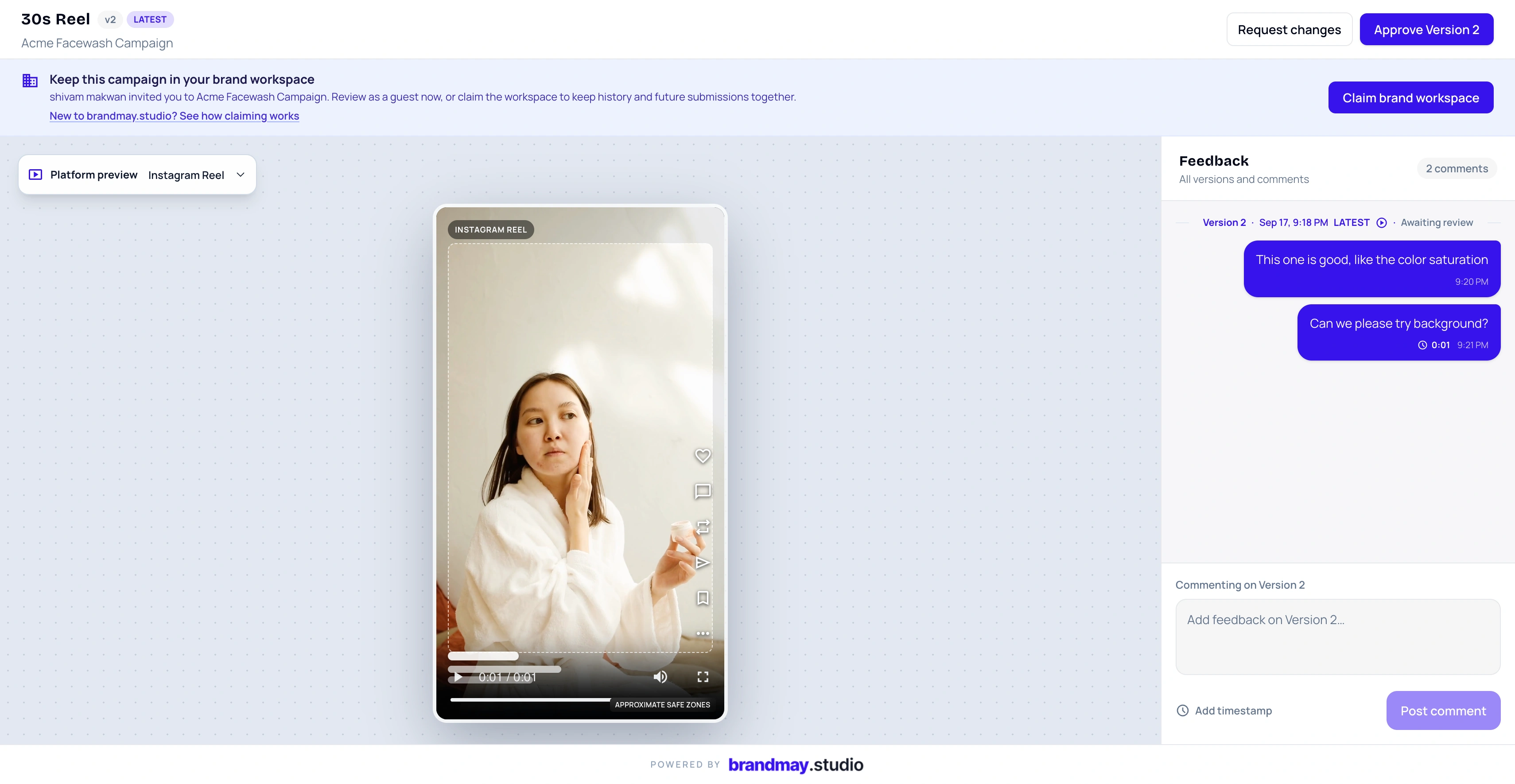
Before you claim
On the review page, you can inspect the current published draft, read earlier version feedback, add comments and, when permitted, approve the current version or request changes.
The claim prompt gives you two paths:
- Continue as guest keeps you in the review link without creating a reusable workspace.
- Claim brand workspace takes you through sign-in or signup and connects the campaign to a brand workspace you can return to later.
If you received an email-bound invitation, sign in with the invited email. This prevents someone who merely receives a forwarded invitation from claiming the brand connection.
What claiming connects
Claiming connects:
- the campaign attached to this review link;
- its creator and deliverables;
- the version history for the reviewed deliverable;
- the eligible guest review session and its feedback history;
- future published submissions for the same connected campaign.
It does not automatically connect every campaign that happens to use the same brand name. A different creator campaign must be invited or claimed through its own authorized flow.
Claim the workspace step by step
- Open the review link shared by the creator.
- Review the campaign name and the current draft.
- Select Claim brand workspace from the claim prompt or banner.
- On the claim page, choose Sign in if you already have a verified account or Create account with the authorized email.
- Review the campaign connection shown on the claim page.
- Accept the connection.
- Continue to the brand workspace.
After acceptance, the campaign should appear in the brand workspace and the creator should see that the campaign is Connected on brandmay.studio.
What happens to your earlier feedback?
Eligible guest feedback stays attached to the same review history when the session is claimed. Comments are not copied into a new campaign, and their original version and timestamps remain meaningful.
An approval or request-changes decision is different from a comment. Comments support the conversation; a decision records the review result for the current published version.
Returning later
Once claimed, sign in normally and open the brand workspace. From there you can:
- see campaigns connected to that brand workspace;
- open the brand workspace Inbox;
- return to creator submissions without searching for the original link;
- follow version history and feedback;
- view the connected campaign and its deliverables;
- receive brand-side notifications for relevant creator actions.
If your company has teammates, an Admin can invite them to the same brand workspace. Admin members can operate the workspace; Read only members can inspect allowed information without changing review state.
If you prefer not to claim
You can continue as a guest when the review link allows it. Keep the link safe: guest access depends on the link, its optional passcode, and the review permissions set by the creator.
Claiming is most useful when you expect another submission, need a durable review history, or work with the creator across several deliverables in the same campaign.
Next step
Return to the creator’s review link and choose the option that matches how you want to work.
Related guides:
Your next action
Return to the campaign that needs your review.
Use the invitation or review link you received. Existing brand members can sign in to their workspace.