

brandmay.studio keeps the draft, feedback conversation, and decision together. The most important rule is simple: comments and decisions belong to a specific version, and only the current published version can receive the current approval decision.
Open the submission
You can arrive from:
- a public review link shared by the creator;
- a notification in your claimed brand workspace;
- Review now on a connected campaign;
- the brand workspace Inbox.
Confirm the campaign, creator, deliverable, and version before leaving feedback.
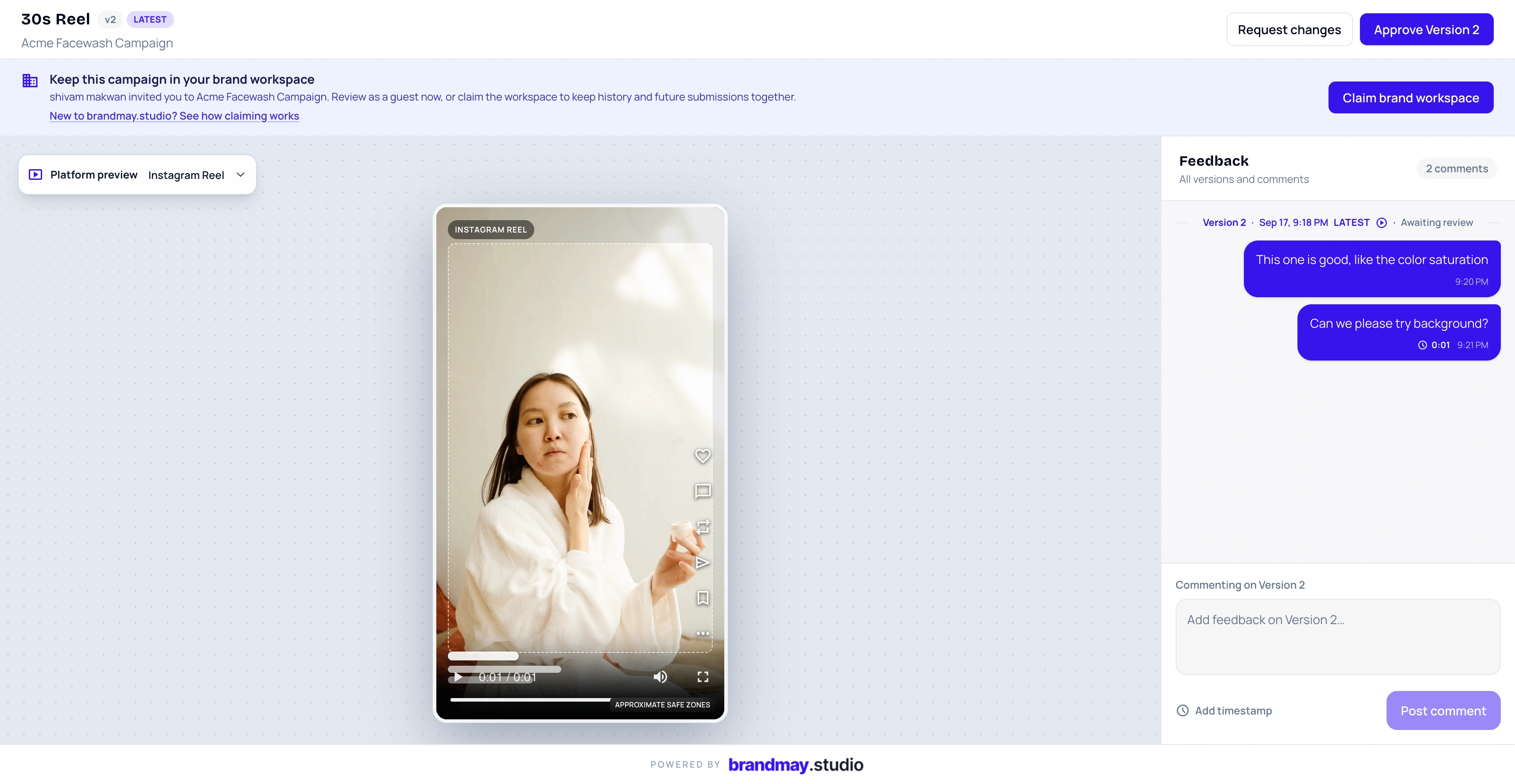
Understand versions
Each published draft appears as a version, such as V1 or V2. The feedback panel groups the conversation by version so you can read the history without repeatedly switching the media player.
Selecting an earlier version lets you inspect what changed. It does not make that older version the current submission.
When the creator publishes V2 after feedback on V1:
- V1 keeps its original comments and decision history;
- V2 becomes the current version;
- approval of V2 does not mark V1 or a future V3 as approved;
- the creator can see which exact version was approved.
Leave useful feedback
Write one actionable change per comment where possible. For video, pause at the relevant moment and use the timestamp action before submitting the comment.
Useful:
At 00:12, keep the product name on screen for one more second.
Less useful:
Timing feels off.
A comment does not automatically request a new version. Use the review decision when the creator needs a formal outcome.
Request changes
Choose Request changes when the current published version should not move forward yet. Add a concise summary that helps the creator understand the outcome, then use comments for individual details.
The creator receives the updated review state and can respond with a revised draft. A newly uploaded draft must be published for review before it becomes the version you can decide on.
Approve the current version
Choose Approve Version # only after checking the version number in the action. Approval belongs to that exact published asset.
If a newer version is published later, the earlier approval remains part of history, but the new current version requires its own review.
Working with teammates
Brand workspace Admins can perform allowed review actions and manage teammates. Read only members can inspect workspace information but cannot comment or decide.
Use individual accounts instead of sharing one login. That keeps activity and reviewer identity understandable.
Review checklist
Before approving:
- confirm the correct campaign and creator;
- confirm the deliverable;
- confirm the current version number;
- read unresolved feedback from earlier versions;
- check mandatory messaging, product details, timing, and usage requirements;
- use Approve Version #, not only a comment saying “approved.”
Next step
Open the submission that needs attention and review the current published version.
Related guides:
Your next action
Return to the campaign that needs your review.
Use the invitation or review link you received. Existing brand members can sign in to their workspace.